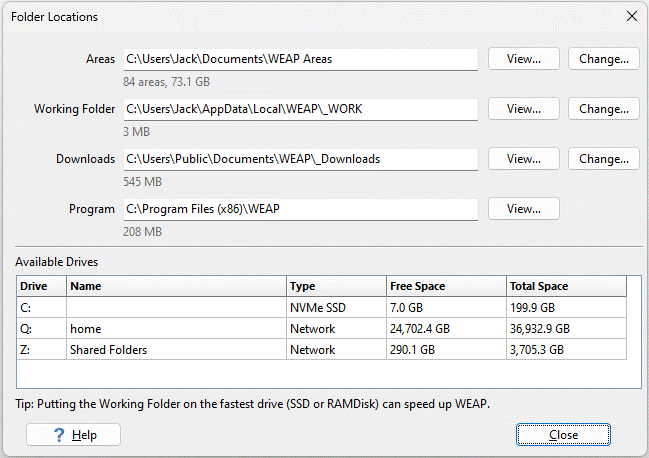
Menu Option: General, Folder Locations
Use this screen to see where WEAP stores its files, how much disk space each folder uses, and, if you want, to move a folder to a different location, such as a faster drive or a drive with more free space. For each folder, click View... to open the folder in Windows Explorer, or Change... to move it to a new location. (The Program folder is set when WEAP is installed and cannot be changed.)
Areas: WEAP's main data folder -- every area is stored in its own subfolder here, e.g., "Weaping River Basin." The default location is My Documents\WEAP Areas. The number of areas and their total size are shown below the folder name. The Areas folder also contains several helper folders whose names begin with an underscore: _Backup (zipped versions of your areas -- see Area, Revert to Version) and _Dictionary (WEAP's data dictionary). If you move the Areas folder, everything in it, including these helper folders, moves with it. The WEAP keeps the Working, Temp, Instances and Downloads folders outside the Areas folder by default (see below), so that they are never synced to the cloud along with your documents.
Working Folder: When you open an area, WEAP copies the area's data files into the Working Folder and works on that copy -- your changes are copied back only when you save the area. Its contents are recreated every time an area is opened. Because WEAP constantly reads and writes files here while you edit and calculate, the speed of the drive holding the Working Folder affects WEAP's speed more than any other folder. See "Choosing a Good Location" below. The default location is your local application-data folder, C:\Users\YourName\AppData\Local\WEAP\_Work, with WEAP's temporary files in _Temp beside it. This folder is private to your Windows account and is never synced by OneDrive or Dropbox.
Downloads: Climate data, elevation data and plugins that WEAP automatically downloads. The default location is the shared Public Documents folder, C:\Users\Public\Documents\WEAP\_Downloads, so that everyone who uses the computer shares one set of downloaded files instead of each downloading their own copy. Public Documents is not synced by OneDrive or Dropbox. (Older installations kept _Downloads inside the Areas folder; WEAP moves it to the new default the first time it starts if the old location is cloud-synced, or is on the same drive anyway, in which case the move is instant. If another user of the computer already has downloads in the shared folder, WEAP uses those and leaves the old folder in place.)
Program: The WEAP program itself and its supporting files. This location is set when WEAP is installed and cannot be changed.
Click Change... and select the new location. For the Working Folder and Downloads, you choose the parent folder and WEAP will create its _Work or _Downloads folder inside it. For Areas, the folder you choose becomes the new Areas folder itself, and it must be empty. WEAP will confirm the move, showing the source, destination and size.
Moving to a different folder on the same drive is nearly instant -- the files are renamed, not copied. Moving to a different drive copies the files (with a progress bar and a Cancel button), verifies the copy, and only then deletes the originals. If you cancel, or if anything goes wrong, the original folder is left untouched and any partially copied files are removed.
Moving the Working Folder will first save and close the open area, then reopen it afterward. Moving the Areas folder is a bigger operation: after you confirm, WEAP will close and restart itself, and the move is performed as WEAP restarts, with a progress bar. If an area is open with unsaved changes, WEAP will first ask you to save them.
Some restrictions: the new location must be an empty folder with enough free space; it cannot be inside the folder being moved; folders cannot be moved while parallel calculation workers or other copies of WEAP are running; and the Areas folder cannot be a UNC network path (\\server\share) -- map a drive letter to the share instead.
The Local Drives list at the bottom shows each drive on your computer, its type (NVMe SSD, SSD, Hard Disk, RAM Disk or Network), and its free and total space, to help you choose a good location.
Putting the Working Folder on your fastest drive (SSD or RAMDisk) can speed up WEAP. If WEAP notices that your Working Folder is on a regular hard disk and a faster drive has plenty of free space, it will suggest the move (once).
Avoid moving any of WEAP's folders to a network drive -- network drives are much slower than local drives, and WEAP will slow down noticeably. WEAP will warn you if you try.
Removable drives (USB sticks and memory cards) cannot be used at all: if the drive were removed while WEAP is running, data would be lost or corrupted. They are not listed in the drives table, and WEAP will refuse a folder on one.
Never put the Working Folder inside a cloud-synced folder such as OneDrive, Dropbox or Google Drive. WEAP rewrites Working Folder files constantly, which causes very heavy syncing and can even corrupt an area if the sync software locks a file while WEAP is writing it. This is why WEAP's default Working Folder is outside your Documents folder, which OneDrive often syncs. The Areas folder, in contrast, may be kept in a cloud-synced folder -- syncing it can even serve as an extra backup. The Downloads folder is safe there too, but it is large and everything in it can be downloaded again, so there is no reason to sync it.
This outline shows the default locations of WEAP's folders. The Areas, Working and Downloads folders can be moved using this screen, so they may be in different locations on your computer.
\Program Files (x86)
  \WEAP                    {The Program folder: WEAP.exe and its supporting files.  Cannot be moved.}
\My Documents
  \WEAP Areas              {The Areas folder.  Move it using General: Folder Locations.}
    \Tutorial              {The area that goes with the written WEAP Tutorial}
    \Tana Tutorial         {The second area used by the written WEAP Tutorial}
    \Weaping River Basin   {The sample Weaping River Basin area}
    \...                   {...and all your other areas, each in its own subfolder}
    \_Backup               {Zipped versions of your areas -- see Area: Revert to Version}
    \_Dictionary           {WEAP's data dictionary -- do not make any changes to files here}
\Users\YourName\AppData\Local
  \WEAP                    {Private to your Windows account; never cloud-synced}
    \_Work                 {The Working Folder: the working copy of the currently open area.  Can be moved separately.}
    \_Temp                 {Temporary files (moves with the Working Folder)}
    \_Instances            {Used by extra copies of WEAP running at the same time, e.g., parallel
                            calculation workers, each in its own numbered subfolder, and the
                            job files they exchange with the main copy}
\Users\Public\Documents
  \WEAP                    {Shared by all users of this computer; never cloud-synced}
    \_Downloads            {The Downloads folder: downloaded climate data, elevation data and plugins.  Can be moved separately.}
If you move the Working Folder or Downloads folder, its _Work or _Downloads folder will be inside the parent folder you chose, instead of in the default location shown above. _Temp and _Instances move with the Working Folder. _Backup and _Dictionary always stay inside the Areas folder and move with it.